Managing School Examples
Set example comments for your whole school so every teacher starts from the same writing style.
What School Examples Are
School examples are reference comments that ReportRocket uses to learn your school's preferred writing style. Once you save examples at the school level, every teacher in your school sees them as their default when they generate or refine reports for that year level.
Think of them as the writing samples a new teacher would read on their first day to understand "this is how we write reports here."
Who Can Manage Them
Only school administrators can add, edit, or remove school examples. Teachers and reviewers see a read-only view at this page that directs them to contact the administrator.
Opening the Examples Tab
- Go to School Admin in the sidebar
- Click the Examples tab
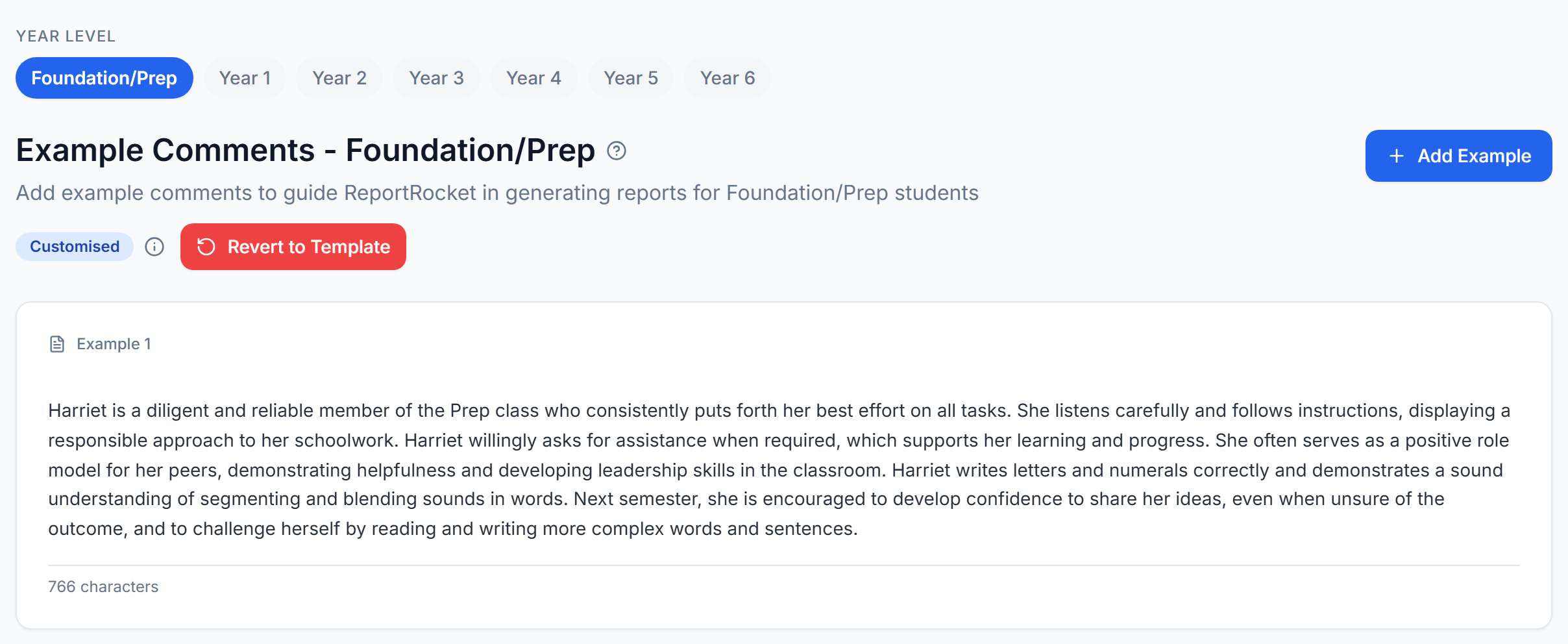
You will see a year level selector at the top and the list of example comments for the currently selected year level below it.
How Examples Work per Year Level
Examples are stored separately for each year level from Foundation through Year 6. The writing style for a Foundation comment is very different from a Year 6 comment, so each year level has its own list.
To work with a different year level, click the year level pill at the top of the page. The example list and any badges below update to match.
Adding an Example
- Select the year level you want to add an example for
- Click Add Example in the top right
- Paste or type the comment into the text box
- Click Add Example at the bottom of the editor to save
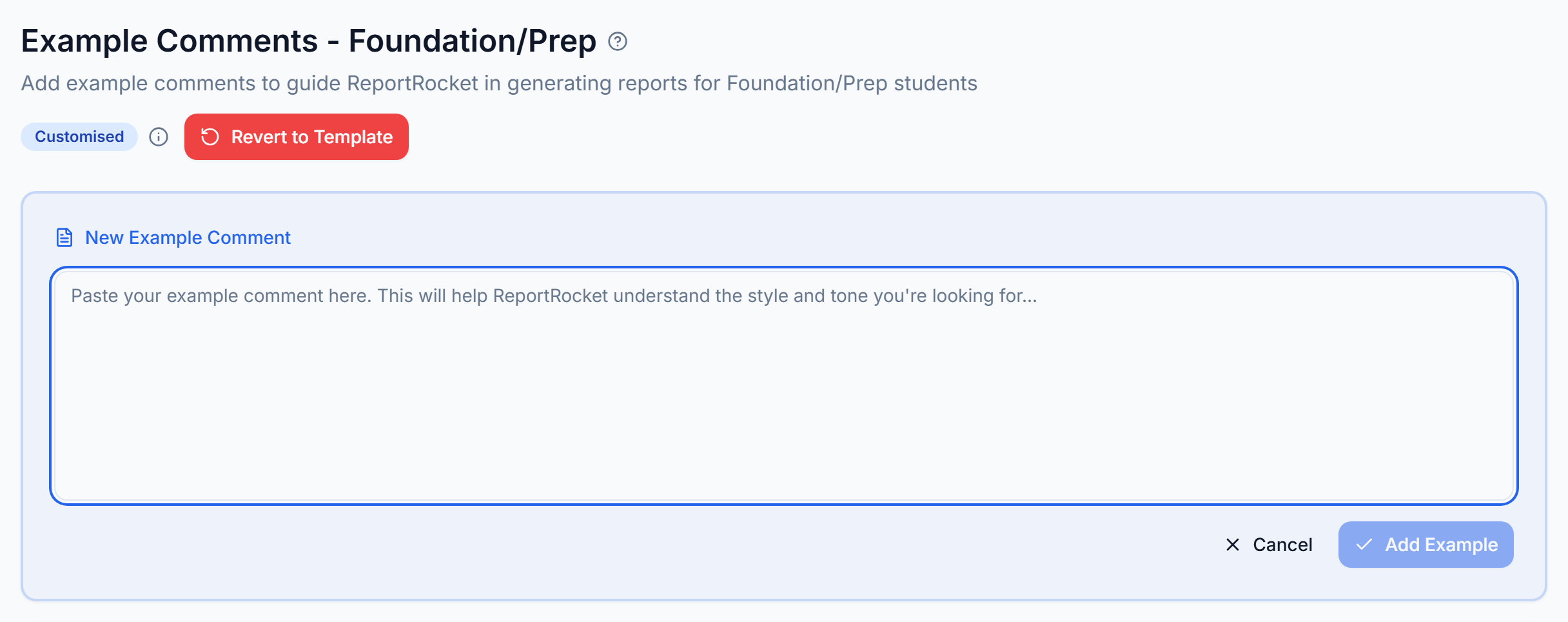
Good examples are 3 to 5 high-quality comments that show the tone, structure, and level of specificity you want ReportRocket to mirror. More is not always better. A handful of strong examples produces tighter generated comments than a long list of average ones.
Tip: Use real comments from past reports that your school was happy with. Strip any personally identifying details before pasting.
Editing or Removing an Example
Each example card shows actions for editing the text or removing the example. Use the inline editor to make changes, or remove an example if it no longer reflects the style you want.
When you remove a school example, teachers fall back to the template examples shipped with ReportRocket for that year level.
The Customised Badge
When you have made any changes to a year level's examples, a Customised badge appears next to the heading. This is a quick visual cue that the year level is using your school's overrides rather than the templates.
If you want to wipe your changes and start fresh, click Revert to Template next to the badge. This removes all school overrides for that year level only and brings back the original templates.
How Teachers Experience School Examples
When a teacher opens Settings and visits the Examples section:
- They see your school examples by default for any year level your school has customised
- They can write their own personal examples if they want a different style for their own class
- A small banner reminds them that the school has examples and they are using personal versions
- They can revert to the school examples at any time
This means your school examples set the baseline, and individual teachers can deviate when they have a good reason.
When to Update School Examples
- Start of the school year: review the examples to make sure they still reflect the writing voice you want for the year ahead
- After a curriculum or reporting policy change: update the examples so generated comments match the new expectations
- When you notice patterns in generated comments you do not like: adjust the examples and the next batch of generations will follow the new style
Next Steps
Was this article helpful?