Using One-Click Revisions
Work through a returned pack one suggestion at a time, applying a reviewer's wording, asking for alternatives, or dismissing what does not fit.
What One-Click Revisions Means
When a colleague sends a pack back, every note they left arrives as its own suggestion card sitting beside your comment. Most cards carry a one-click action that applies the change for you, so working through a full round of feedback takes a handful of clicks rather than a rewrite.
You work through the suggestions one at a time, and nothing changes until you approve it. Older versions of ReportRocket used a single Address Feedback button that rewrote the whole comment in one go. Returned packs no longer work that way, because it was hard to see what had actually changed.
Opening a Returned Pack
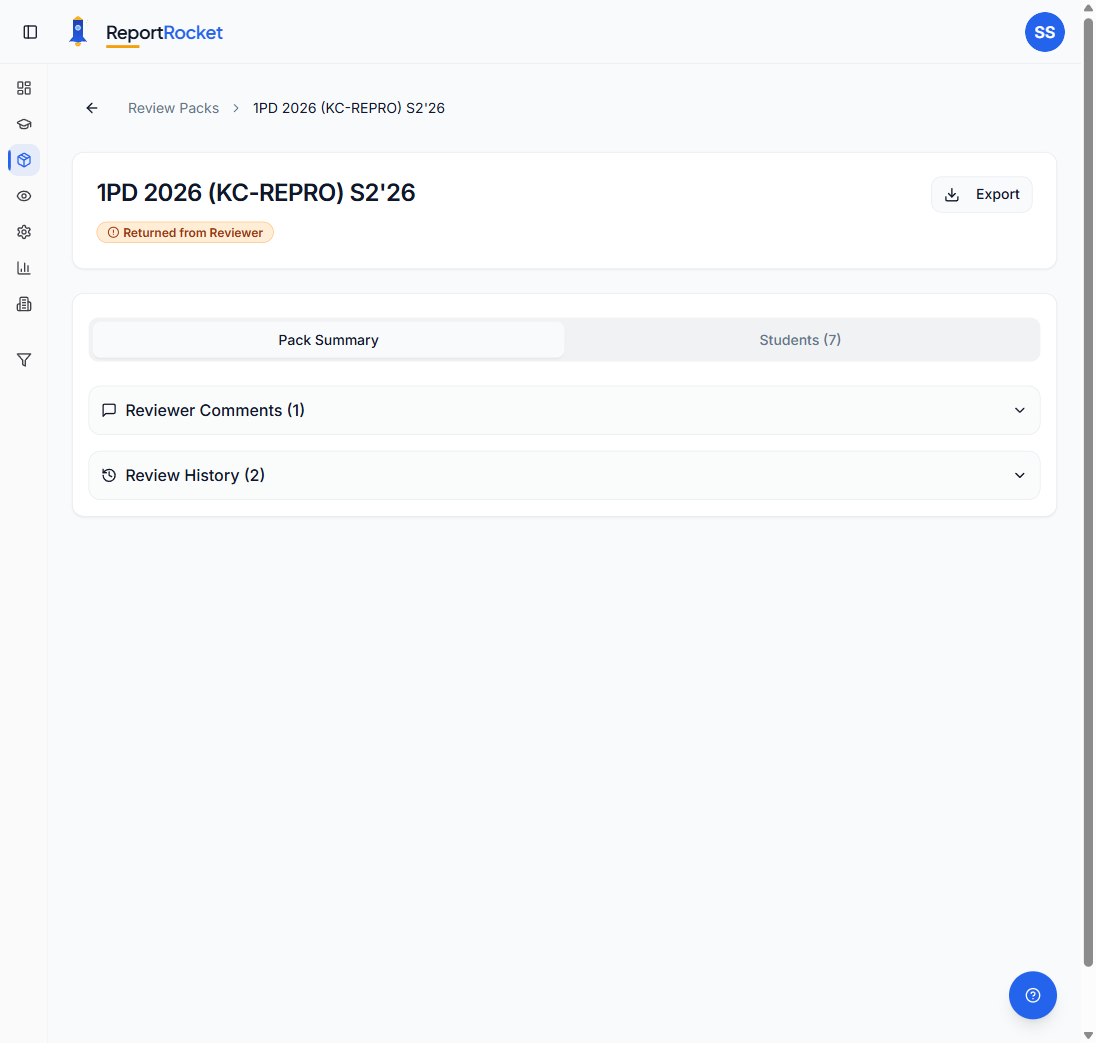
A pack your reviewer has sent back shows as Returned on your Review Packs page, and under Needs My Action on your dashboard. Open it and you land on the first student, with arrows and an "N of M" counter to move through the pack, plus a dropdown to jump straight to a student.
If your reviewer left an overall note about the pack, it stays pinned above the comment on every student, with their name and the review round.
The Two Panes
On the left is your comment, fully editable, with every flagged phrase underlined. The header above it gives you:
- Copy, which puts the comment on your clipboard
- History, which shows what has happened to this report in earlier rounds
- A marker toggle, with three settings
The marker toggle controls how much you see. All markers shows tracked changes and flag underlines together. Flags only hides the tracked changes so you can read the comment cleanly. None hides both for a final read.
Below the comment sits a live character count against your school's maximum, and a save indicator. Your edits save as you type.
On the right is the Review suggestions rail: one numbered card per note, with a running count of how many are still to review. Hovering a card lights up the matching phrase in the comment.
Working Through a Card
Each card shows the reviewer's category (Clarity, Spelling, Words to avoid, and so on), their initials, the exact phrase they flagged, and what they said about it.
Which actions appear depends on the note:
| Action | What it does |
|---|---|
| Use this | Applies the reviewer's own wording to the flagged phrase. You confirm first, with the old and new wording shown together. |
| Remove | Replaces Use this when the note asks for something to be deleted. |
| Suggest a fix | ReportRocket offers a replacement that fits the sentence. Take the one offered, open more options for alternatives, or Try again for a fresh set. |
| Rewrite it | Puts your cursor on the flagged phrase in the comment so you can write it yourself. |
| Dismiss | Leaves the phrase as it is. Use it when you disagree, or when no change is needed. |
When a reviewer's note is an instruction rather than replacement wording, something like "end this on a full stop", Suggest a fix leads instead of Use this, because there is no literal wording to paste in.
How Cards Close Off
Once you have acted, the card mutes and records how it was handled:
- Addressed, with "Changed in the comment" and a Show in comment link that scrolls to the phrase
- Dismissed, with "No change needed" and a Reopen link if you change your mind
A card can also come back marked couldn't locate. That means the flagged wording is no longer in the comment, usually because you rewrote that part yourself. The note is still worth reading, but Dismiss is the only action left on it.
General Feedback Cards
Some notes are about the comment as a whole rather than one phrase. They appear as General feedback cards with a single Suggest action, which reshapes the comment (shorter, warmer, better flow) instead of replacing specific words.
If a general note is asking you to add something rather than change something, ReportRocket tells you there is nothing to rewrite and points you at Add to comment.
Add to Comment
Add to comment sits under the comment itself. Write a short note, for example "a kind and helpful member of the class", and ReportRocket writes it in as a tracked change, working from what is already there rather than inventing detail.
This is available on any comment, whether or not a reviewer asked for it.
Finishing the Round
Work through each student, then send the pack for review again from the pack page. Your reviewer sees the updated comments, and the round number moves on.
Tips
- Read the overall note first. It often explains the pattern behind the individual flags.
- Check what Use this will paste. A reviewer's note is sometimes a remark about the writing rather than finished wording, so read the confirmation before applying it.
- Dismiss is a real answer. You know the student. If a suggestion does not fit, dismiss it and move on.
- Switch to Flags only for your final read. Tracked changes help while you work and get in the way when you are checking the comment reads well.
For Reviewers
Specific notes make better one-click actions. Wording a teacher can apply directly is more useful than a description of the problem.
- Less useful: "This is unclear"
- More useful: "the reading group he leads"
Next Steps
Was this article helpful?