Managing Roles and Permissions
School Administration
Updated Apr 4, 2026
3 min read
Understand the Admin, Reviewer, and Teacher roles and how to manage permissions across your school.
Role Hierarchy
ReportRocket uses three roles to control what school members can do:
| Role | Level | Key Permissions |
|---|---|---|
| Admin | Highest | Full school management, settings, role assignment, review pack oversight |
| Reviewer | Middle | Can be assigned Review Packs for peer review |
| Teacher | Base | Create classes, add students, generate comments, create Review Packs |
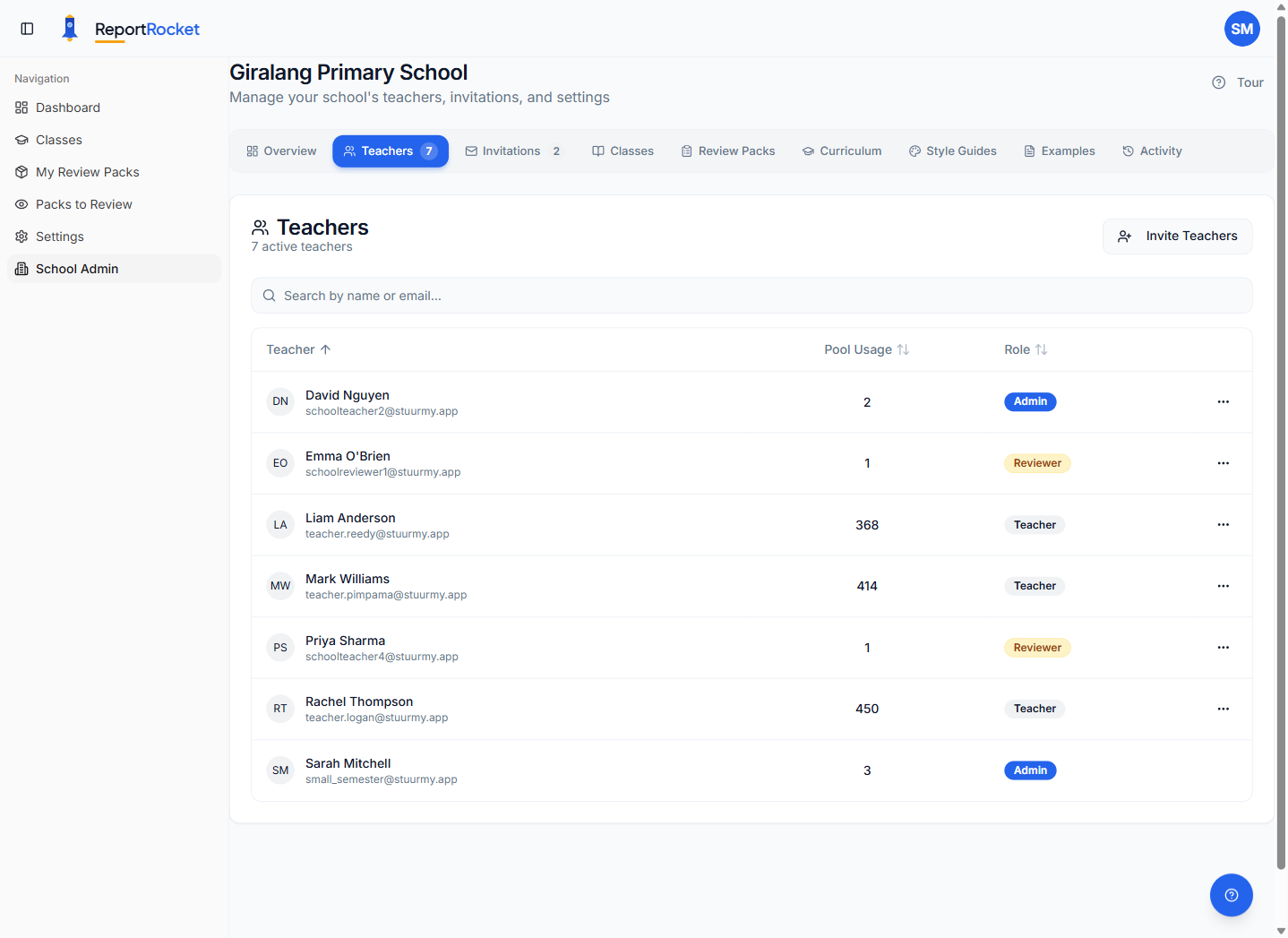
All school members start as Teachers when they accept an invitation. Admins can promote members to Reviewer or Admin from the Teachers tab.
Promoting and Demoting Members
To promote a teacher to Reviewer or Admin:
- Go to School Admin > Teachers
- Find the teacher in the list
- Click the three-dot menu on their row
- Select Make Reviewer or Make Admin
To remove a role:
- Click the three-dot menu on the member's row
- Select Remove Reviewer or Remove Admin
When removing the Reviewer role from someone who has active Review Packs assigned to them, you will see a warning showing how many packs they currently have. You can proceed, but consider reassigning those packs first.
The Restrict Reviewers Setting
Admins can enable Restrict Reviewers from the School Settings section on the Overview page.
When enabled: Only members with the Reviewer or Admin role can be selected as pack reviewers when assigning a Review Pack.
When disabled (default): Any school member can be selected as a reviewer.
This is useful for schools that want to ensure only experienced staff review reports.
What Each Role Can Do
Teacher (default)
- Create and manage their own classes and students
- Generate AI report comments
- Create Review Packs and send them for review
- Use One-Click Revisions on returned packs
- Customise their own curriculum preferences
Reviewer (everything above, plus)
- Can be assigned as a reviewer on Review Packs (when Restrict Reviewers is enabled)
- No additional admin access
Admin (everything above, plus)
- Access the School Admin section with all tabs
- View all classes across the school (not just their own)
- Manage teachers: invite, remove, promote, demote
- View and reassign all Review Packs school-wide
- Configure school settings (Two-Name Comments, Restrict Reviewers)
- View the Activity Log
- Manage school-wide curriculum, style guides, and examples
Best Practices
- Have at least two admins to avoid being locked out if one leaves
- Use the Reviewer role when you want to control who reviews reports
- Check active packs before removing a reviewer's role
Next Steps
Tags:
roles
permissions
admin
reviewer
teacher
promote
demote
Was this article helpful?