Creating Your First Class
Learn how to create your first class in ReportRocket, choose the correct year level, and configure settings for Foundation to Year 6 students.
Creating a Class
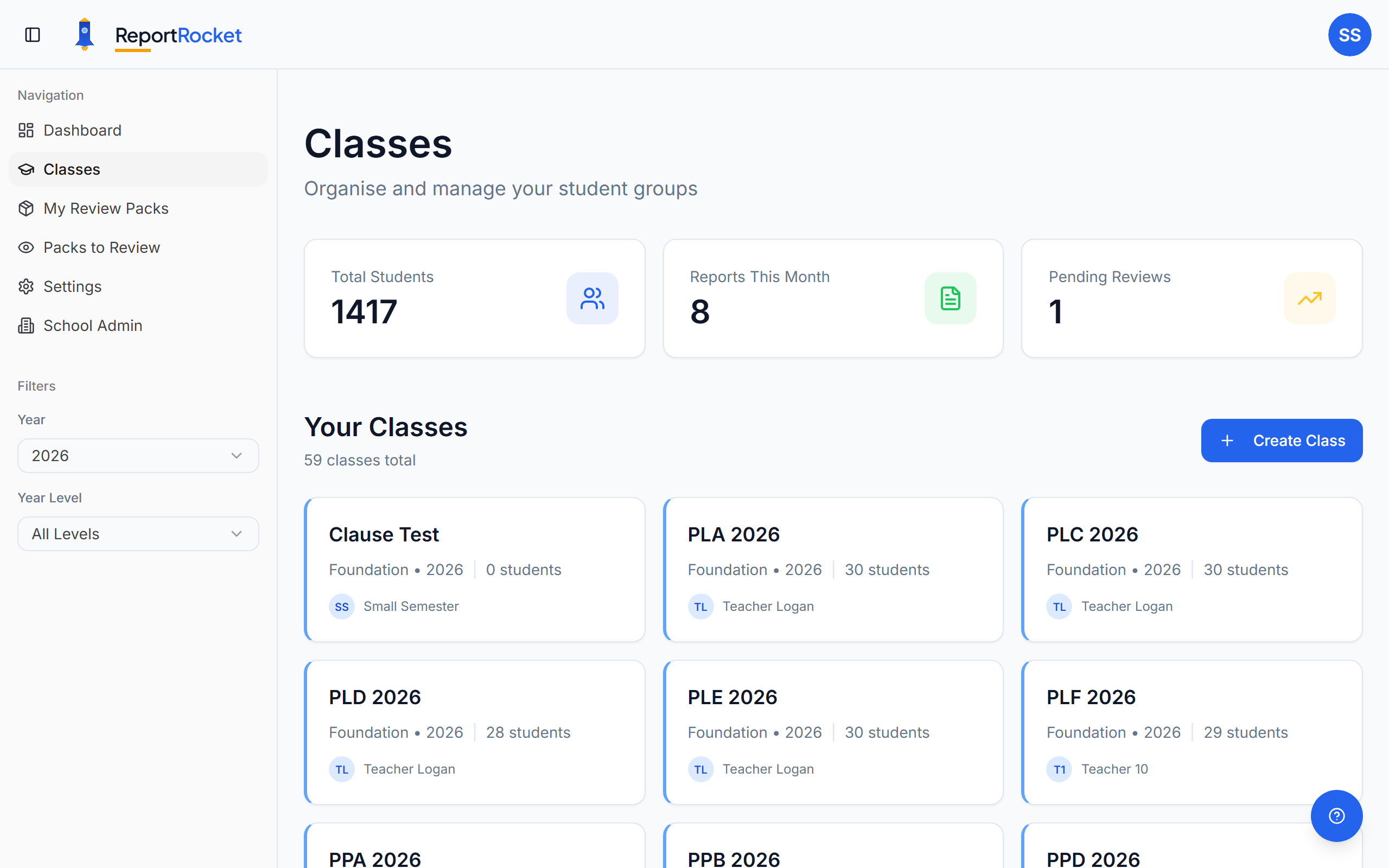
Classes in ReportRocket organise your students by teaching group. Each class has a year level that determines which curriculum criteria are available.
The Classes Page at a Glance
When you open Classes, you'll see three summary tiles at the top:
- Total Students — count of all students across your classes
- Reports This Month — comments generated in the current month
- Pending Reviews — reports currently sitting with a reviewer
If you have reports finished and ready for peer review, a Reports Ready for Peer Review banner appears at the top of the page with a button that jumps you straight into creating a new Review Pack.
For school administrators: A Search by teacher filter appears next to the class list so you can quickly narrow down to one teacher's classes — useful when your school has many staff members. This filter only shows for admins.
Step-by-Step Guide
1. Navigate to Classes
Click Classes in the sidebar or the "Add Class" button on your dashboard.
2. Click "Add Class"
You'll see a form asking for:
- Class name – e.g., "3B", "Year 2 Blue", "Foundation Koalas"
- Year level – Foundation through Year 6
3. Choose the Year Level Carefully
The year level determines:
- Which curriculum criteria appear when generating reports
- The language complexity of generated comments
- Available subject areas and content descriptors
Tip: If you teach a composite class (e.g., Year 1/2), create separate classes for each year level, or choose the year level that best matches your reporting requirements.
4. Save Your Class
Click "Create Class" and your new class appears in your list, ready for students.
Managing Classes
- Edit – Click the class card to change its name
- Delete – Remove a class (this also removes all students and their reports)
- View students – Click into a class to see and manage its students
Year-Level Specific Content
Each year level has curriculum-aligned templates including:
- English (Reading, Writing, Speaking & Listening)
- Mathematics (Number, Measurement, Statistics)
- Science, HASS, The Arts, HPE, Technologies
- General Capabilities
Next Steps
Was this article helpful?