Admin Review Packs Overview
View all Review Packs across your school as an admin, filter by semester, teacher, status or year level, and reassign packs when needed.
School-Wide Review Pack Visibility
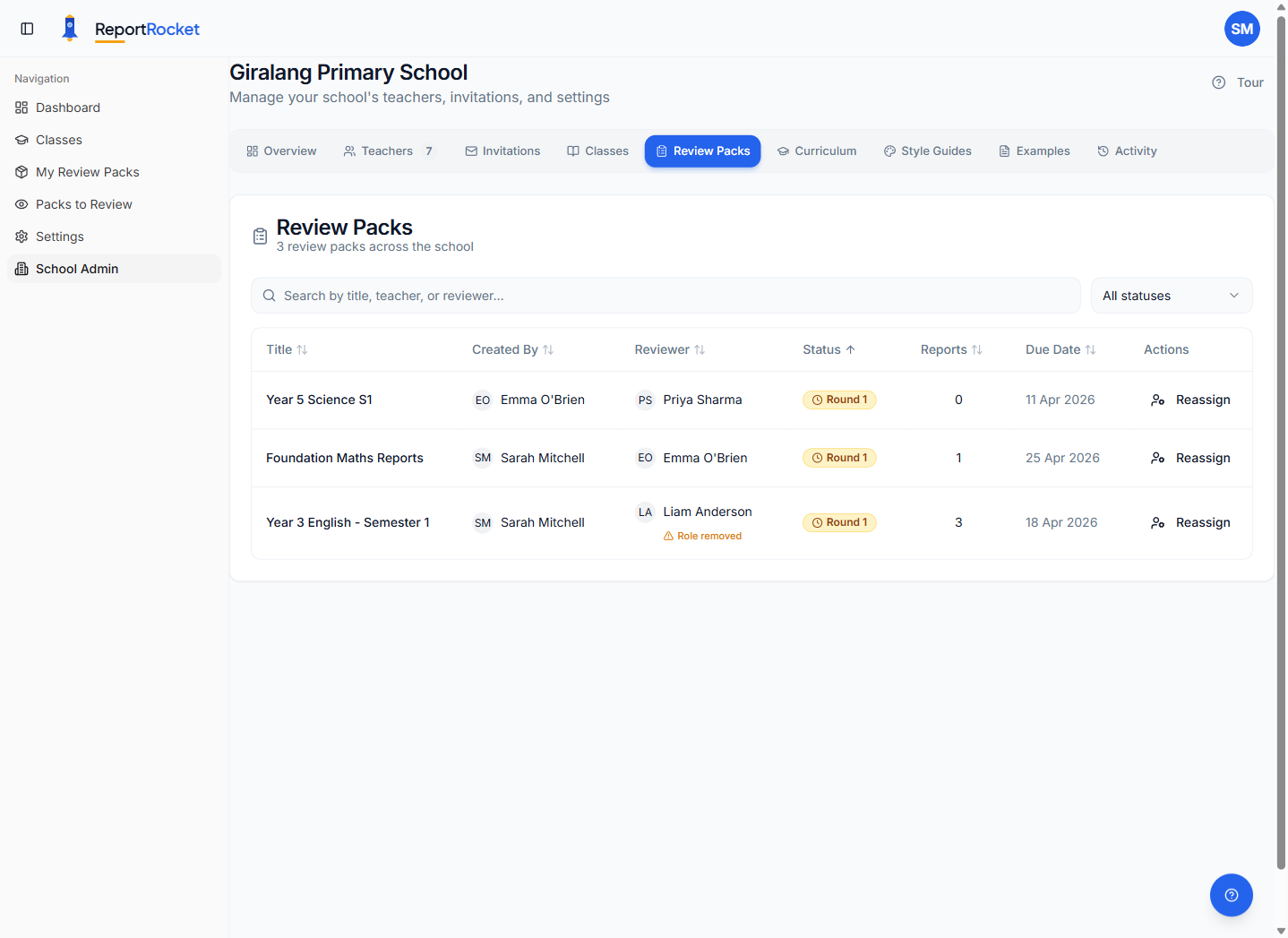
As a school administrator, the Review Packs tab in School Admin gives you a bird's-eye view of every Review Pack created by teachers in your school.
Accessing the Review Packs Tab
- Go to School Admin in the sidebar
- Click the Review Packs tab
What You Can See
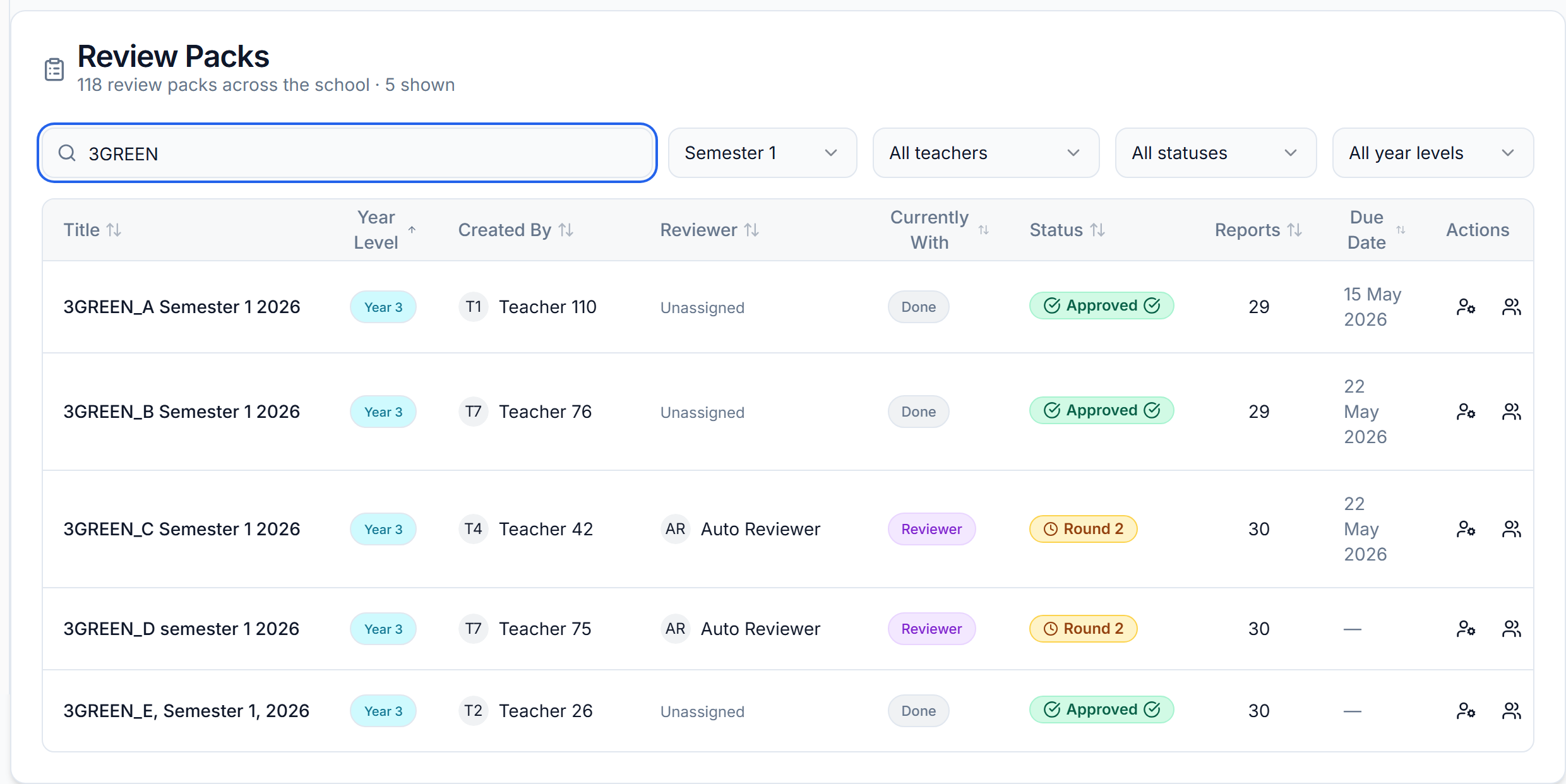
The table shows all packs across the school with these columns:
| Column | Description |
|---|---|
| Title | The name of the Review Pack |
| Year Level | The year level(s) covered by the reports inside the pack |
| Created By | The teacher who created the pack |
| Reviewer | The assigned reviewer (or "Pending" / "Unassigned") |
| Currently With | Who needs to act next: Teacher, Reviewer, or Done |
| Status | Current workflow status and review round (see below) |
| Reports | Number of student reports in the pack |
| Due Date | When the review is due (if set) |
| Actions | Reassign the reviewer or the teacher, reopen an approved pack, or delete a pack |
Status Column
The Status column shows two pieces of information:
- Workflow status: the current stage of the review process (Draft, In Review, Needs Changes, or Approved). A pack that needs changes shows a Returned badge.
- Review round: an amber "Round N" badge showing how many review cycles the pack has been through (e.g. "Round 1" means first review, "Round 2" means it was returned and resubmitted)
Searching and Filtering
Search
Use the search bar to find packs by title, teacher name, teacher email, reviewer name, or reviewer email.
Filter by Semester
The semester filter starts on the current semester. Choose Semester 1 or Semester 2 to see packs containing reports from that semester, or All semesters to see everything. If nothing matches, a Show all semesters button switches it to all semesters for you.
Filter by Teacher
Choose a teacher to see only the packs they created. Pick All teachers to clear the filter.
Filter by Status
Use the status dropdown to show only packs in a specific state:
- Draft: packs not yet sent for review
- In Review: packs currently with a reviewer
- Needs Changes: packs returned to the teacher with feedback
- Approved: packs that passed review
Filter by Year Level
Use the year level dropdown to narrow the table to packs that contain reports for a specific year level. Pick "All year levels" to clear the filter. This is the fastest way to spot, say, "all Year 3 packs that are still in review".
The filters work together, so you can combine them, for example one teacher's Semester 2 packs that are still in review.
Sorting
Click any column header to sort. Click again to reverse the sort order.
Reassigning Packs
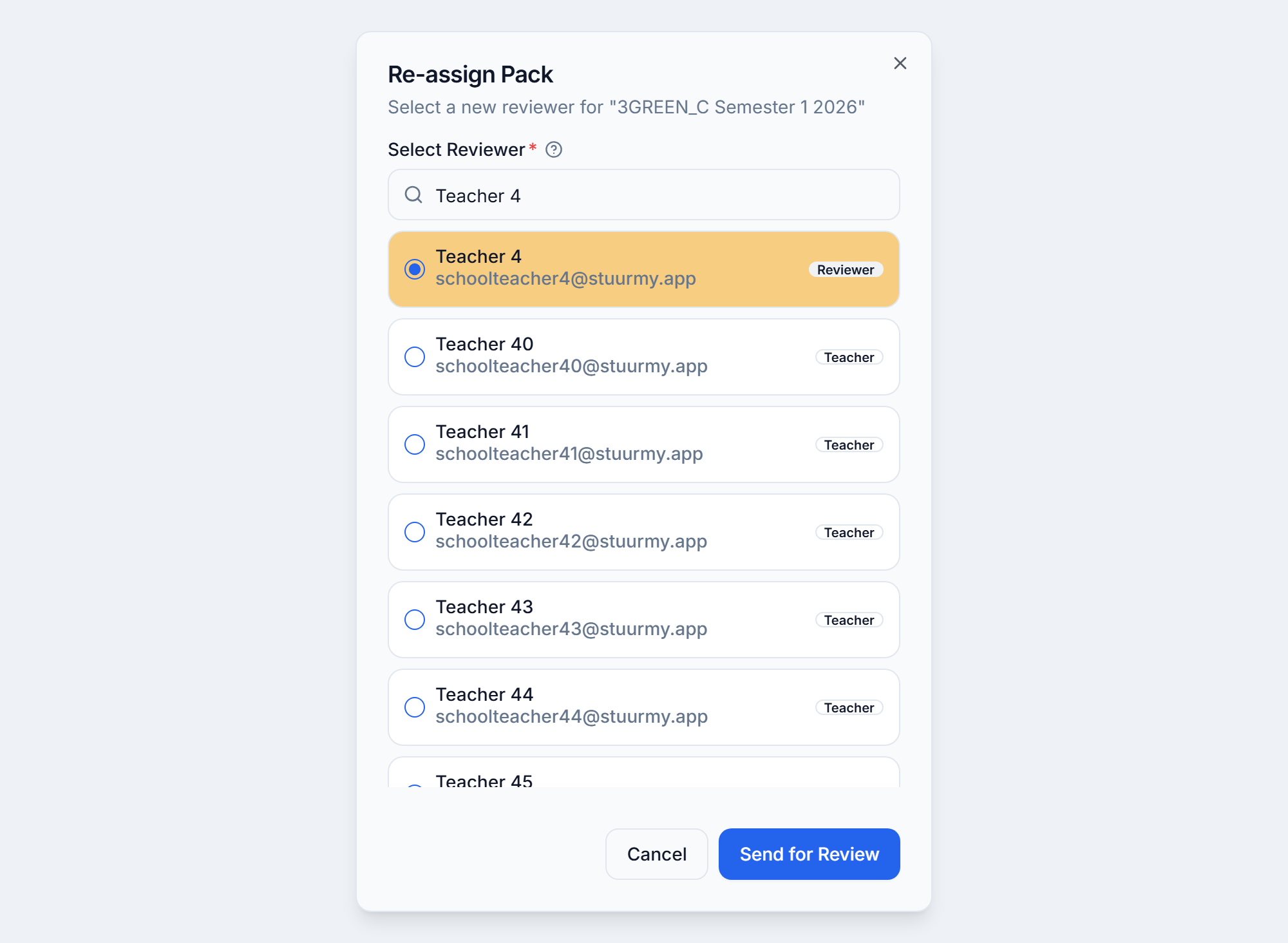
If a reviewer leaves, is unavailable, or has had their Reviewer role removed, you can reassign their packs to someone else.
- Find the pack in the table
- Click the Reassign button (available on all non-draft packs)
- Select a new reviewer from the list of school members
- The pack is immediately reassigned and the new reviewer is notified
Role Removed Warning
If your school has Restrict Reviewers turned on and a reviewer's role has been removed while they still have active packs, you will see an amber "Role removed" badge next to their name. This is a prompt to consider reassigning those packs to an active reviewer. With Restrict Reviewers off, any member can review, so no badge appears.
When you reassign a pack to a different teacher, the pack's current reviewer isn't offered as the new owner.
Next Steps
Was this article helpful?