Using School Analytics
Track reporting progress across your school with the Analytics dashboard, Comment Progress report, and Review Pack progress report.
What the Analytics Section Is For
Analytics gives school administrators a bird's-eye view of where every teacher is up to in the reporting cycle. You can see how many comments have been started, how many are ready for review, where review packs are stalled, and which classes are complete, all in one place.
This is the page to open when you want to answer questions like:
- "How are we tracking for the end of term?"
- "Which teachers haven't started yet?"
- "Which review packs need a nudge?"
- "Are reviewers keeping up with their packs?"
Who Can See It
Analytics is only available to school administrators. If you open /analytics as a teacher or reviewer, ReportRocket sends you back to the dashboard.
Opening Analytics
Click Analytics in the sidebar. The Analytics section has three tabs:
- Overview: high-level snapshot
- Comment Progress: class-by-class report on comment generation
- Review Packs: pack-by-pack report on the review workflow
A year and semester selector sits at the top of every Analytics page. Use these to switch between current and prior reporting periods.
Overview
The Overview is the landing page when you click Analytics.
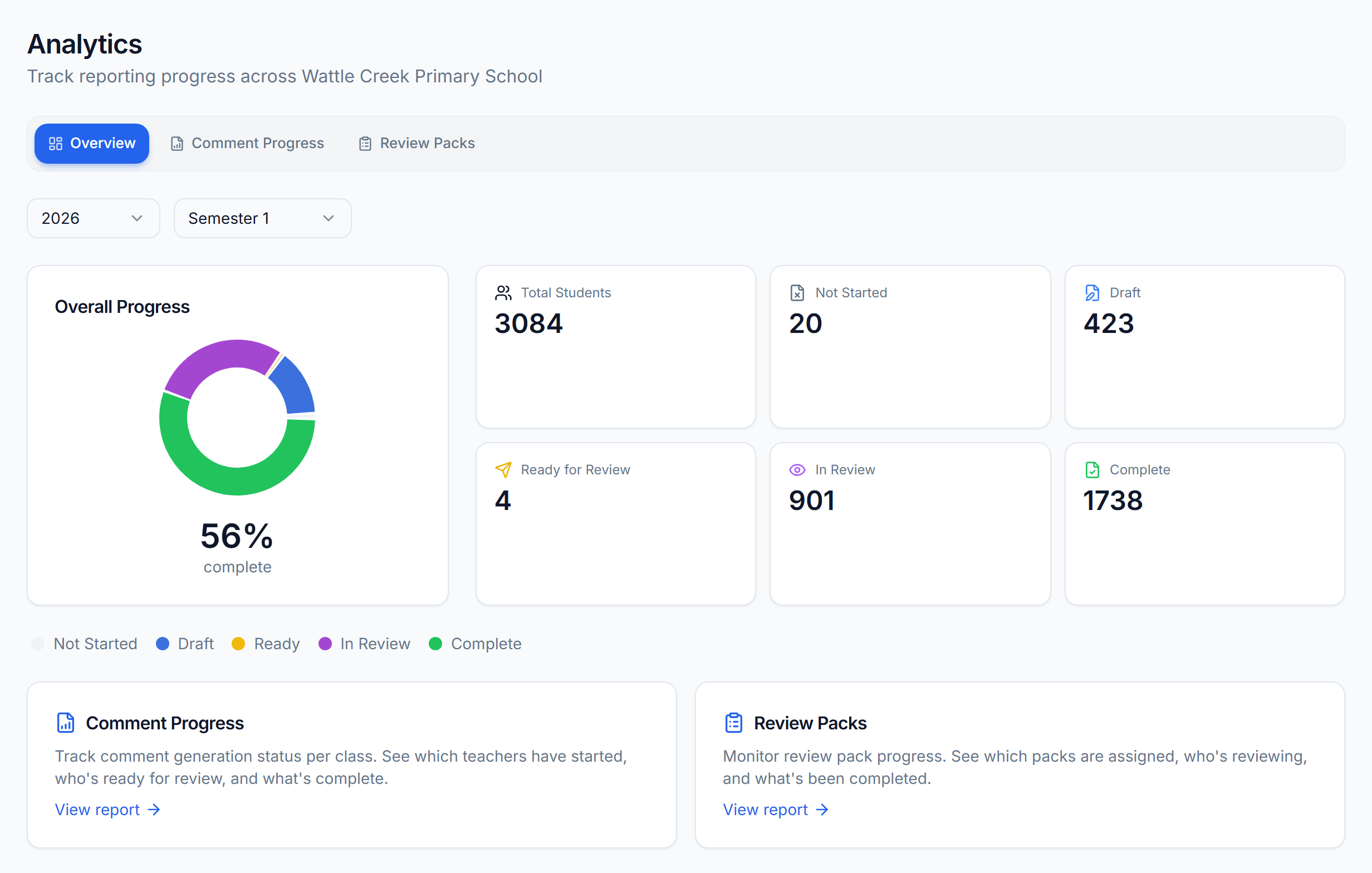
Donut Chart and Completion Percentage
A donut chart in the top left shows the split of all student reports across five statuses. The large percentage in the middle is the share of students with a Complete report.
Stat Cards
Six stat cards sit beside the donut, one per status plus a total:
| Card | Meaning |
|---|---|
| Total Students | All students across all classes in the selected year and semester |
| Not Started | No comment has been generated yet |
| Draft | A comment exists but the teacher is still editing |
| Ready for Review | Teacher has marked the comment ready but it is not yet in a review pack |
| In Review | Comment is sitting in a review pack |
| Complete | Comment has been approved |
Quick Links
Below the chart are two link cards that jump you straight into the Comment Progress and Review Packs reports.
Comment Progress
The Comment Progress page shows the comment generation status for every class in your school.
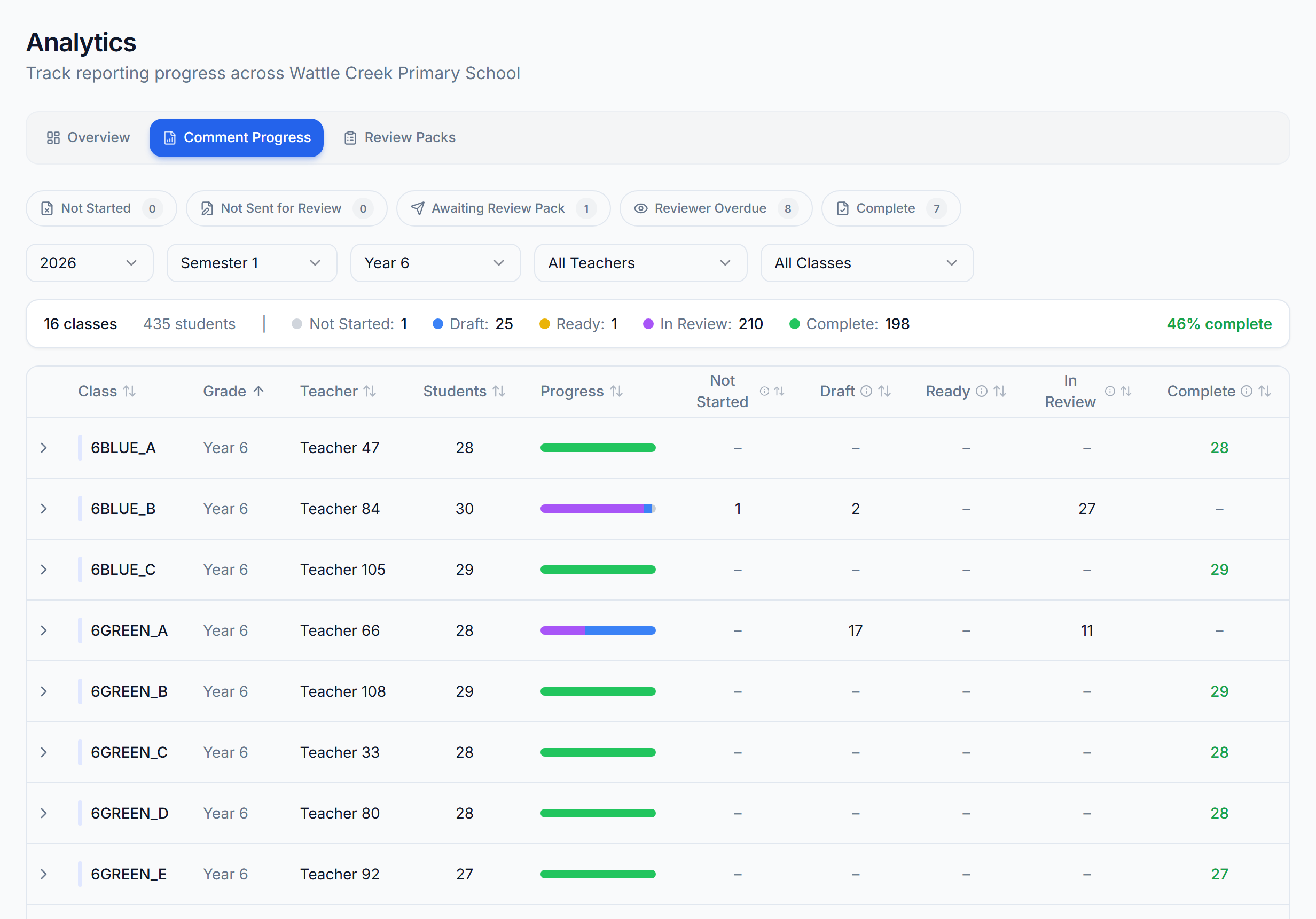
What You See
A table with one row per class, including:
- Class name and year level
- Teacher
- Total students
- A progress bar showing the split of statuses for that class
- Status counts for Not Started, Draft, Ready, In Review, Complete
Click any row to expand it and see student-by-student detail.
Quick Filters
Quick filter buttons sit above the table for the most common follow-up scenarios:
- Not Started: classes where nobody has generated a comment yet
- Not Sent for Review: classes where every comment is still in draft
- Awaiting Review Pack: classes with comments marked ready but not yet packed
- Reviewer Overdue: classes with comments stuck in review
- Complete: classes where every student has an approved report
Filters and Sorting
Use the year level, teacher, and class filters above the table to narrow the view. Click any column header to sort.
Review Packs
The Review Packs page shows the status of every review pack in your school.
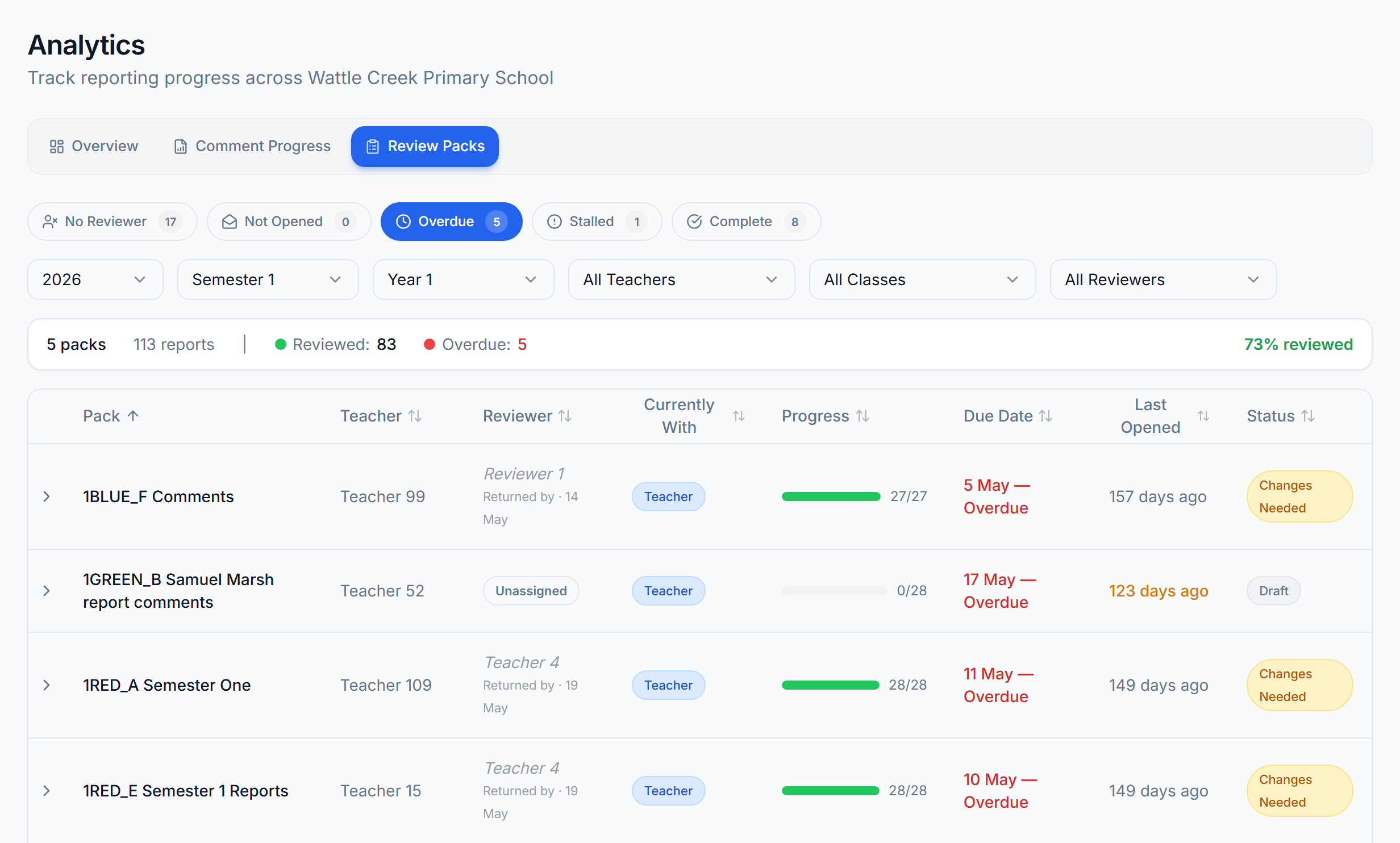
What You See
A table with one row per pack, including:
- Pack title, teacher, reviewer
- A Currently With column showing whether the pack is with the teacher, the reviewer, or done
- Pack status badge (Draft, In Review, Changes Needed, Approved, Published)
- Progress, due date, and the date the reviewer last opened the pack
Click any row to expand it and see the classes and students inside the pack.
Quick Filters
Quick filter buttons help you find packs that need attention:
- No Reviewer: packs that nobody has been assigned to
- Not Opened: reviewer is assigned but has not opened the pack
- Overdue: past the due date and not yet approved
- Stalled: opened 5 or more days ago with reviews still outstanding
- Complete: every report in the pack has been approved
Filters and Sorting
Filter by teacher, reviewer, year level, or class. Click any column header to sort.
How to Read the Data
The numbers update automatically as teachers generate comments, mark them ready, send packs, and reviewers do their work. You do not need to refresh.
If a number looks wrong, check the year and semester selector at the top. Analytics defaults to the current school year and semester based on today's date, but you can switch back to a prior period at any time.
Tips
- Check Analytics weekly during report season. A quick scan of the quick filters surfaces classes and packs that need a chase.
- Use the year level filter to focus on the team that is currently writing reports if your school staggers year groups.
- Open Review Packs first when nothing is moving. Stalled packs are the most common bottleneck.
Next Steps
Was this article helpful?