Exporting and Printing Reports
Export your completed report comments to Excel, PDF, or Word formats. Print with space for signatures or copy individual comments to your school system.
Exporting Your Reports
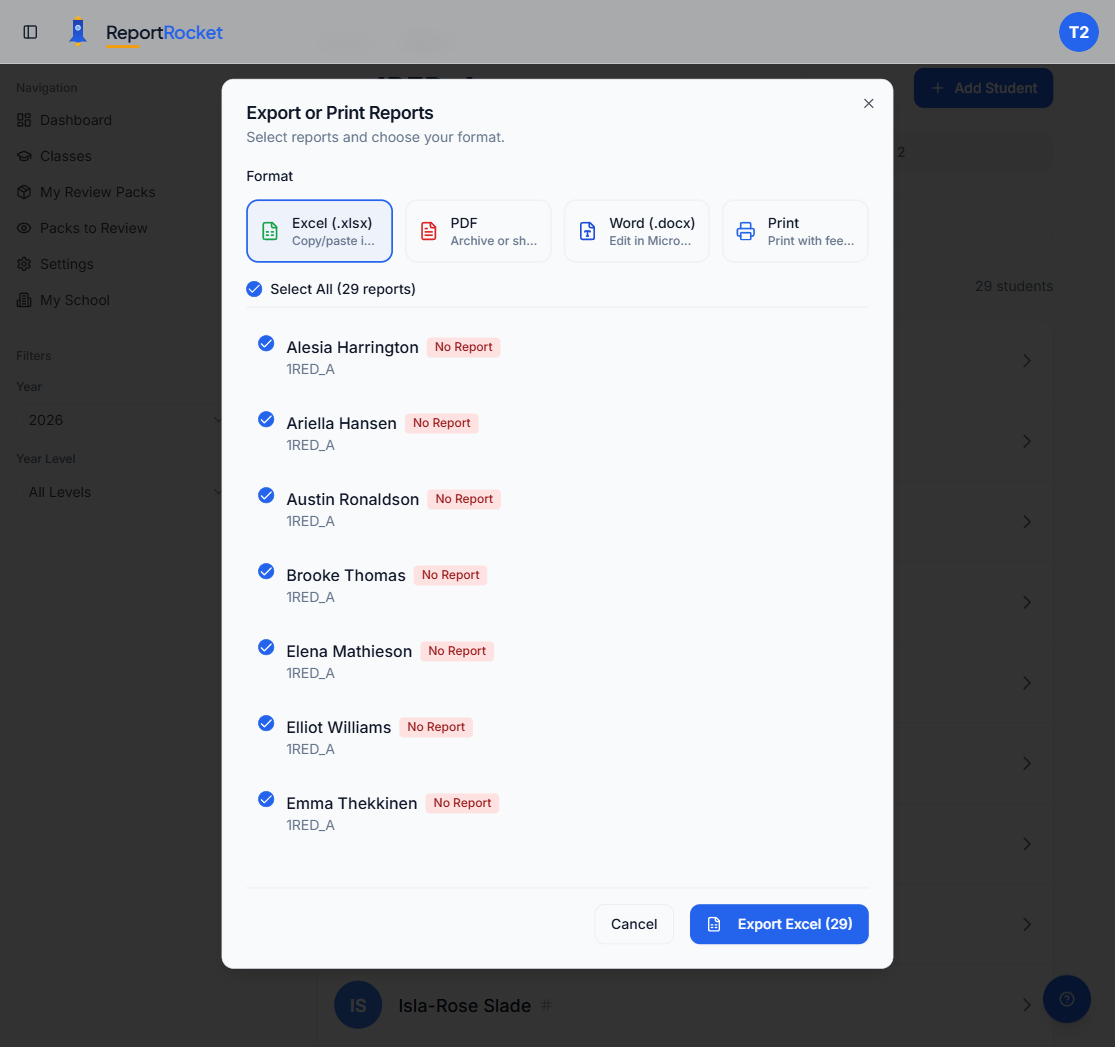
Once you have generated report comments, you can export them in several formats for use outside ReportRocket.
How to Export
- Click Export
- Choose your format
- Choose which reports to include. Every student with a comment is ticked to start with. A student without a comment yet starts unticked, so your file isn't padded with blank rows.
- Click the export button to download
Export Formats
| Format | Best For |
|---|---|
| Excel (.xlsx) | Copying and pasting comments into your school's report card system |
| Archiving a read-only copy or sharing with leadership | |
| Word (.docx) | Further editing in Microsoft Word before submitting |
| Printing with double-spacing and a footer area for handwritten feedback |
Excel
A spreadsheet with a column each for the student's name, their class and the comment. Exports from a class list also include each report's status. The student's name appears exactly as it is on your roll, so the file imports cleanly into your school's reporting system. This is the most popular format for teachers who need to paste comments into their school's reporting platform.
A formatted document with all the selected reports. Useful for keeping a permanent record or emailing to your principal.
Word
A document you can open and edit further. Handy if you want to make final tweaks before printing or submitting.
Opens your browser's print dialog with a print-friendly layout:
- Double-spaced text for readability
- A footer section on each page for handwritten feedback
- One report per page
PDF, Word and Print list students in the order you've chosen with Sort on your class list (surname first, for example "Smith, John", unless you've chosen first name).
Selecting Reports
The export dialog lists the reports with checkboxes:
- Use Select all to tick every row, including students who don't have a comment yet
- Untick any report you want to leave out
- The export button shows how many are selected (e.g. "Export Excel (12)")
If you've turned on the Ready for Review filter on your class list, the export includes just those students, matching what the list is showing.
Where You Can Export From
- A class's student list: the reports for that class, with a status column in Excel
- A review pack: the reports in the pack. You'll also find Export in each pack's menu on your Review Packs page.
- The review page: reviewers can export the pack they are reviewing
In every export, the Class column shows the class each comment was written in.
Next Steps
Was this article helpful?